Guide to Purchasing Modules on the New Dashboard

REQUIRED ACCESS
Admin

DIFFICULTY
Basic

ESTIMATED TIME
2 minutes

APPLIES TO MODULES
Dashboard

PREREQUISITES
You are logged in to the VisitUs dashboard.

SUMMARY
A quick guide on how to purchase a Module on the new VisitUs dashboard.

STEPS
1. Go to Account in the left navigation sidebar.
2. Click on the Modules tab.

3. Choose the module that best fits your requirements.
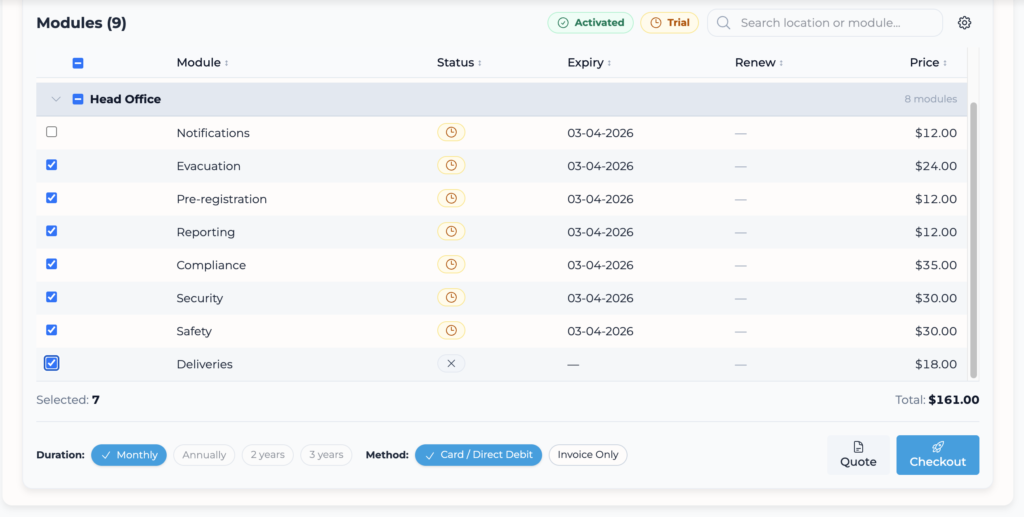
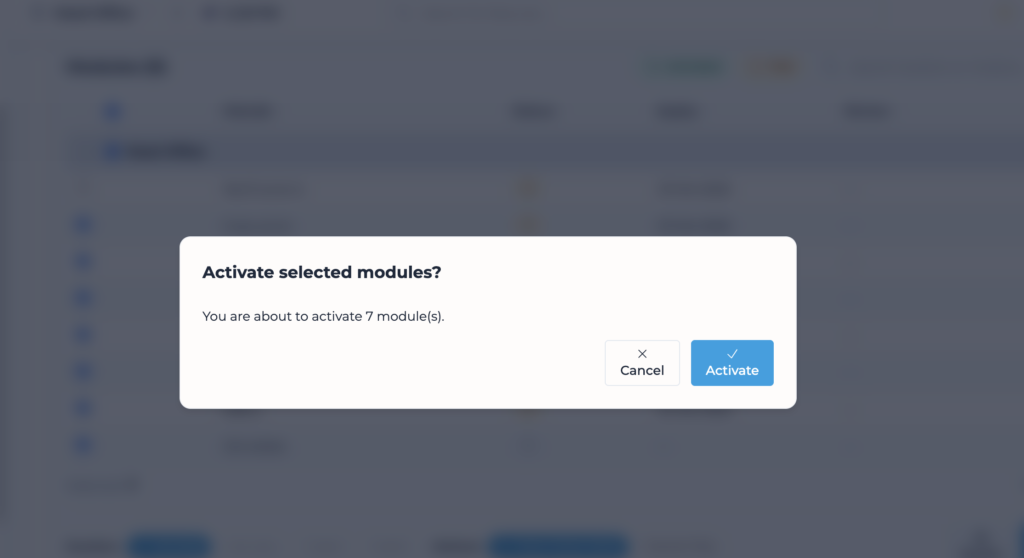
4. Once you have selected and finalised the modules, click the “Checkout” button at the bottom right of the page.

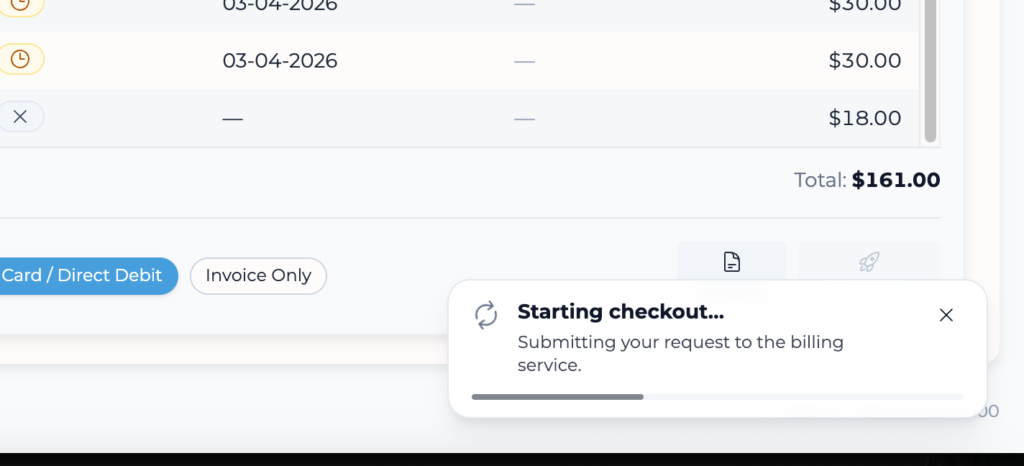
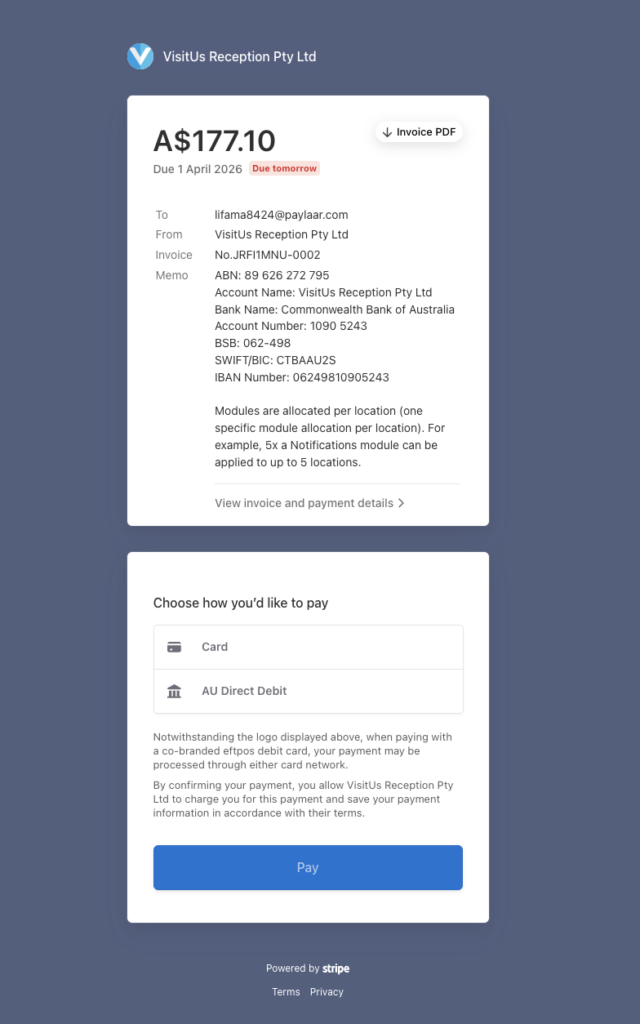
5. Upon checkout, an invoice will be generated, allowing you to complete the payment via card or direct debit
Note:
For the payment options:
- Invoice Only – An invoice will be sent to you for manual payment.
- Card / Direct Debit – Payment will be automatically charged using your saved card or direct debit details.
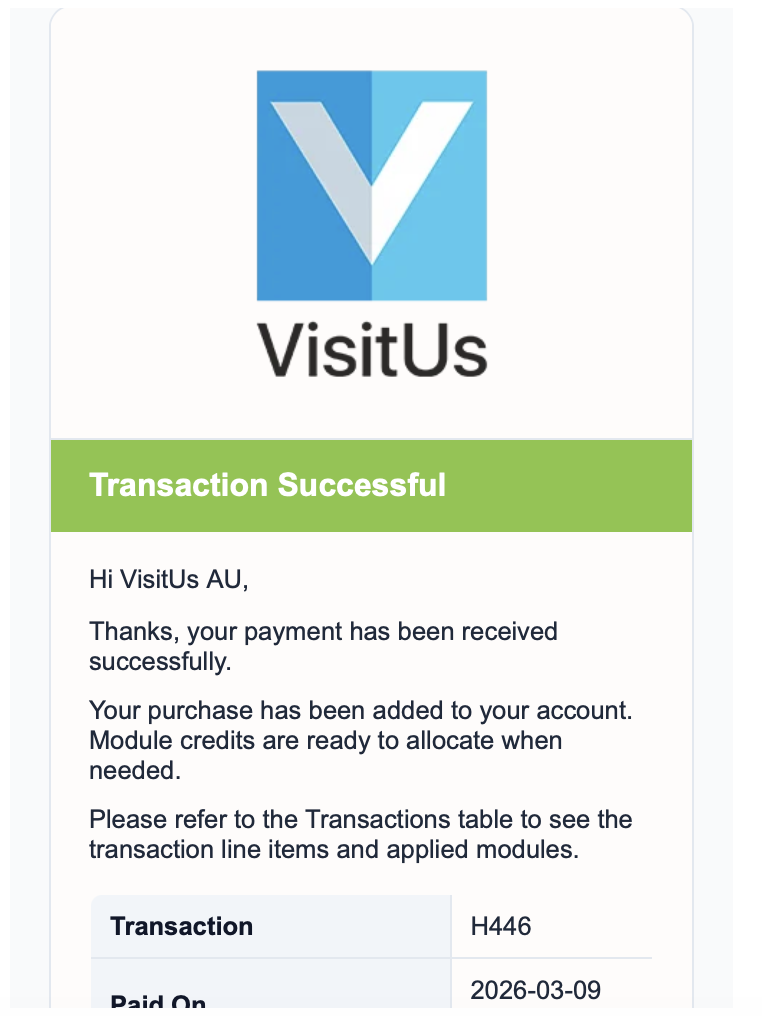
6. Once payment is completed, a receipt and confirmation email will be sent to you.
7. Please refresh the dashboard before logging in to ensure the latest updates are reflected.
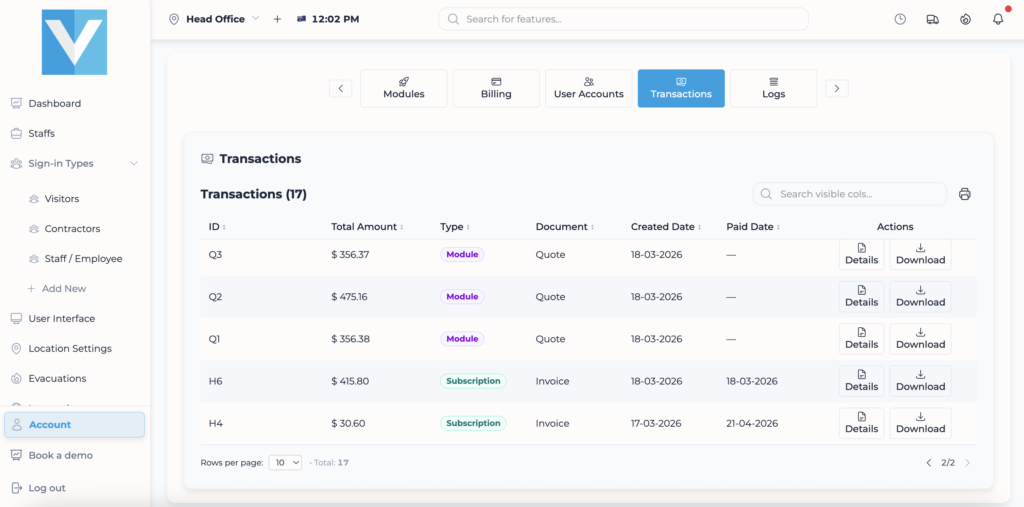
8. You can view all paid transactions under the Transactions tab for future reference. This is where your paid invoices and payment records will be stored.