

Enable Sign in / out using a QR code

REQUIRED ACCESS
Admin

DIFFICULTY
Intermediate

ESTIMATED TIME
5 minutes

APPLIES TO MODULES
User Interface, iPad App

PREREQUISITES
* iPad running the latest VisitUs Reception app.
* Compatible sign-in types enabled for mobile entry.

SUMMARY
Allow visitors and staff to sign in contactless using their own mobile device by scanning a QR code displayed on the iPad kiosk.

STEPS
1. Log in to the dashboard and navigate to Display in the sidebar.
2. Ensure you are on the Layout tab.
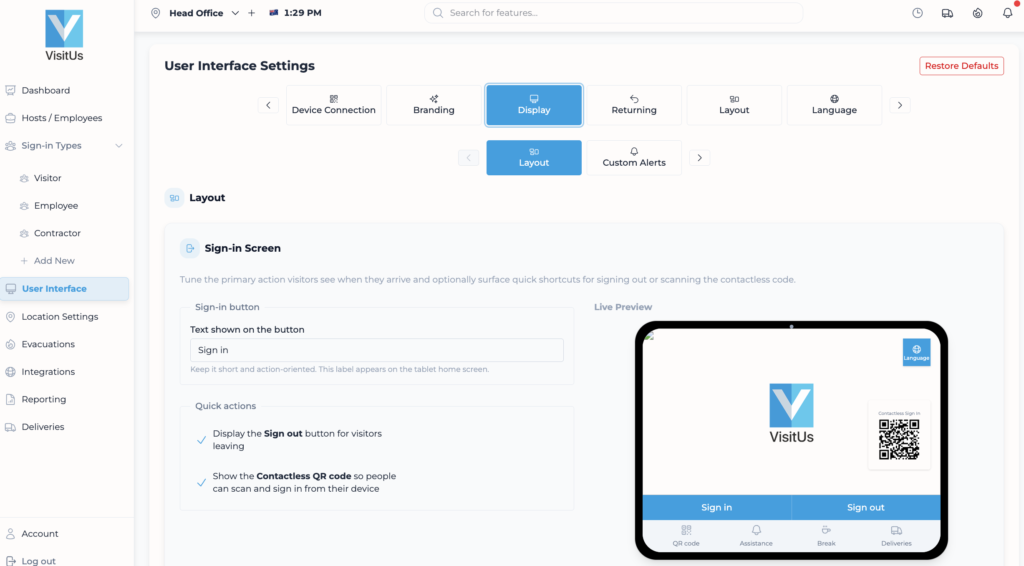
3. Look for the Sign-in Screen sub-section.
4. Find the setting “Show the Contactless QR code so people can scan and sign in from their device”.
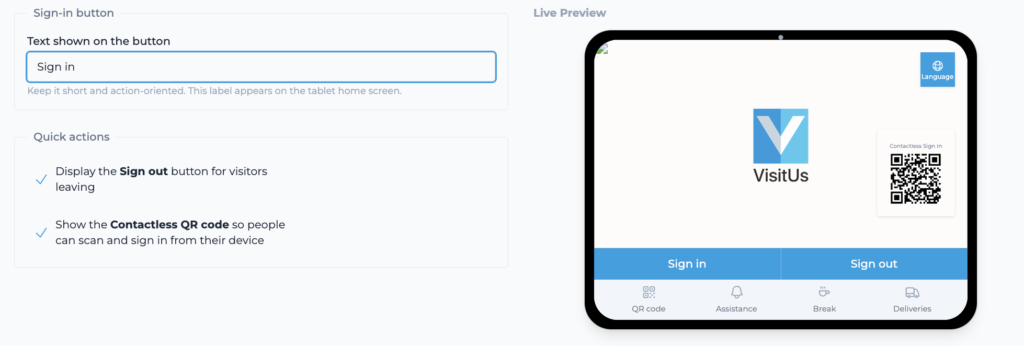
5. Toggle this setting On.
6. Click Save or Update Changes at the top/bottom of the page.

VALIDATION CHECKLIST
* Reload the iPad app (or wait for sync). * Verify a QR code button or icon appears on the welcome screen. * Scan it with a phone to ensure it opens the mobile web sign-in.

TROUBLESHOOTING
* Problem: QR code not appearing on iPad. * Fix: Force close the iPad app and reopen it to trigger a full config sync.