

Set-up Microsoft Teams notifications

REQUIRED ACCESS
Admin

DIFFICULTY
Intermediate

ESTIMATED TIME
5-10 minutes

APPLIES TO MODULES
Integrations, Notifications, Microsoft

PREREQUISITES
* Admin access to VisitUs.
* Admin access to your Microsoft Teams tenant (to approve the app).

SUMMARY
Receive instant host notifications via Microsoft Teams when a visitor signs in. This serves as an alternative or backup to email and SMS notifications.

STEPS
1. Log in to the dashboard and go to Sign-in Types.
2. Click on the Notifications tab.
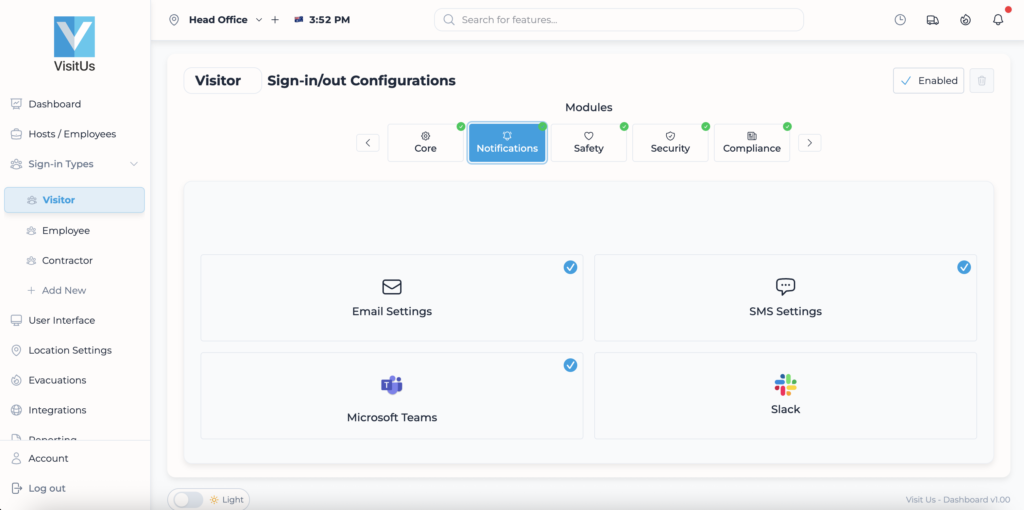
3. Locate the Microsoft Teams tile and click Enable Integration.
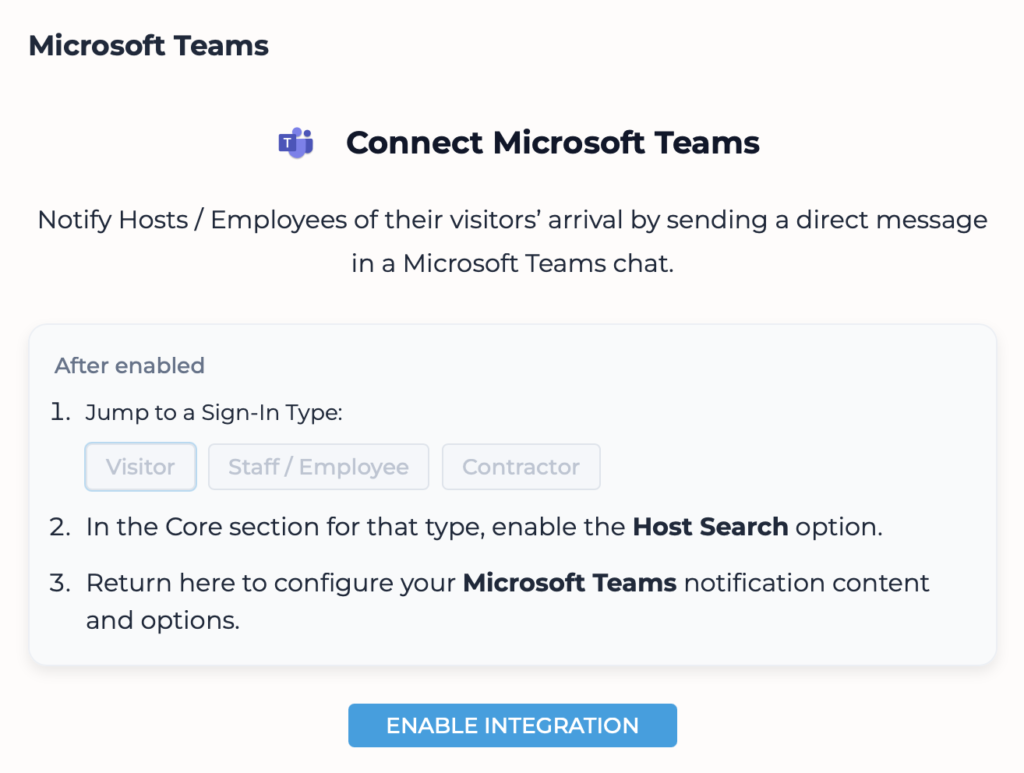
4. You will be redirected to sign in with your Microsoft 365 Admin credentials.
5. Grant the necessary permissions for the VisitUs bot to post messages.
6. Once connected, toggle the “Send host notifications via Teams” setting to On.
7. (Optional) Configure specific channels for general alerts if needed.

VALIDATION CHECKLIST
* Ensure a host has a valid email in VisitUs that matches their Teams email. * Perform a test sign-in selecting that host. * Verify the host receives a Teams message from the VisitUs bot.

TROUBLESHOOTING
* Problem: Host not receiving messages. * Fix: Ensure the host’s email address is identical in both systems. Check if the bot is blocked by organization policies.