

Mark late sign ins

REQUIRED ACCESS
Admin

DIFFICULTY
Intermediate

ESTIMATED TIME
5–10 minutes

APPLIES TO MODULES
Visitor, Contractor, Staff

PREREQUISITES
* You have Admin access to the dashboard.
* At least one Sign-in Type is configured.

SUMMARY
Configure the system to flag visitors as “late” if they sign in after a specific time. This helps in tracking punctuality for interviews, contractors, or staff.

STEPS
1. Log in to the dashboard and navigate to Sign in types from the sidebar.
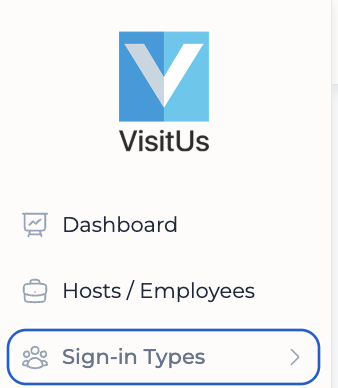
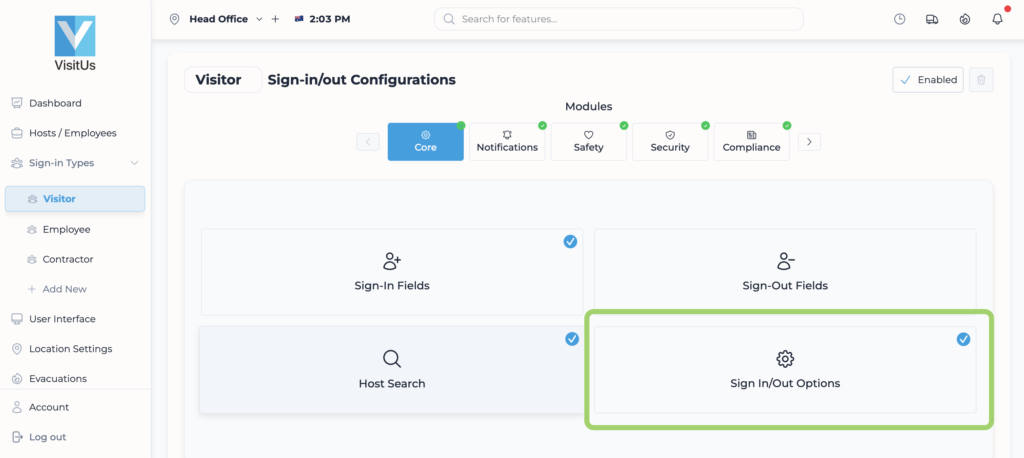
2. Select the specific sign-in type you wish to configure (e.g., “Visitor” or “Contractor”).
3. Click on the Sign In / Out options tile.
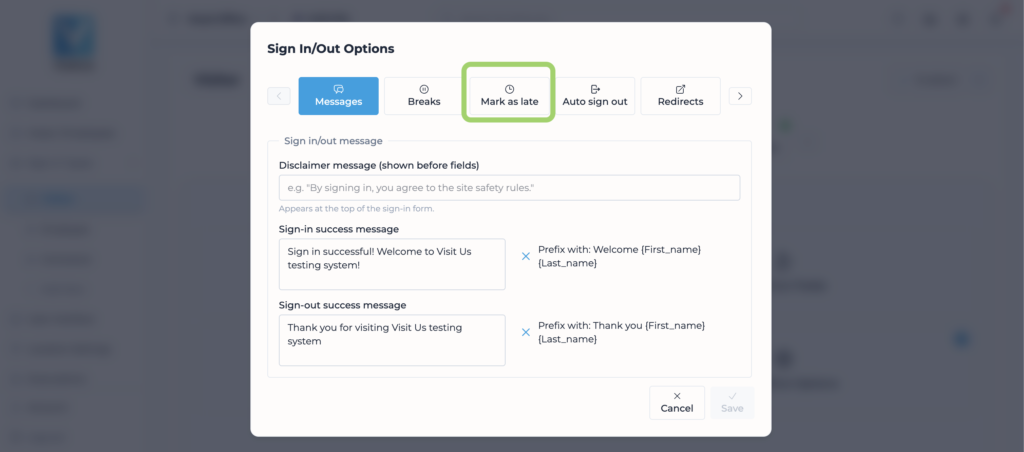
4. Navigate to the Mark as late tab.
5. In the Mark the sign-in as late after dropdown, select the time threshold.
6. Click Save to update changes.

VALIDATION CHECKLIST
* Sign in as a visitor after the set time. * Verify that the sign-in record in the dashboard is flagged as “Late” (often indicated by a red clock icon or status text).

TROUBLESHOOTING
* Problem: Sign-ins are not being marked as late. * Fix: Ensure you updated the correct Sign-in Type and that the iPad has synced (wait 1-2 minutes).