

How to delete a host

REQUIRED ACCESS
Admin

DIFFICULTY
Basic

ESTIMATED TIME
1–2 minutes

APPLIES TO MODULES
Hosts / Staff

PREREQUISITES
* You have Admin access to the dashboard.
* The host to be deleted exists in the system.

SUMMARY
Remove a host or employee from the system to revoke their access and remove them from the iPad search results.

STEPS
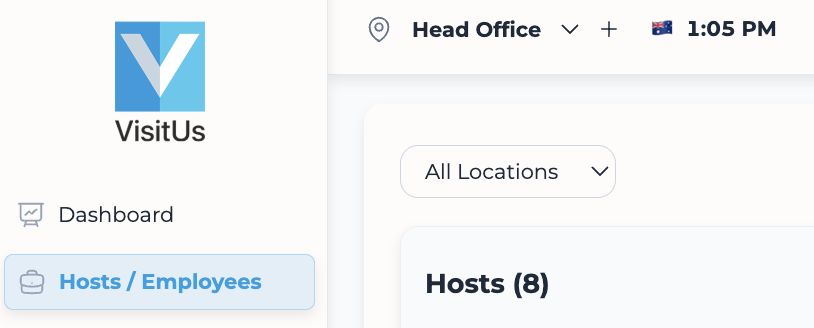
1. Log in to the dashboard and navigate to Hosts / Employees.
2. Locate the host you want to remove. You can use the search bar at the top to find them by name.
3. Click the checkbox to the left of the host’s name to select them.

4. An action bar will appear at the bottom of the screen.
5. Click the Delete button (trash can icon) in the action bar.

6. Confirm the deletion in the popup dialog.

VALIDATION CHECKLIST
* Search for the host again; they should no longer appear in the list. * Check the iPad host search; the name should be removed (allow distinct sync time).

TROUBLESHOOTING
* Problem: Delete icon is not visible. * Fix: Ensure you have actually ticked the checkbox next to the host’s name.